How to Initialize and Set Up Your VirtFusion VPS / RDP
Welcome! Follow this step-by-step guide to initially configure and activate your new VPS or RDP server using the VirtFusion Control Panel.
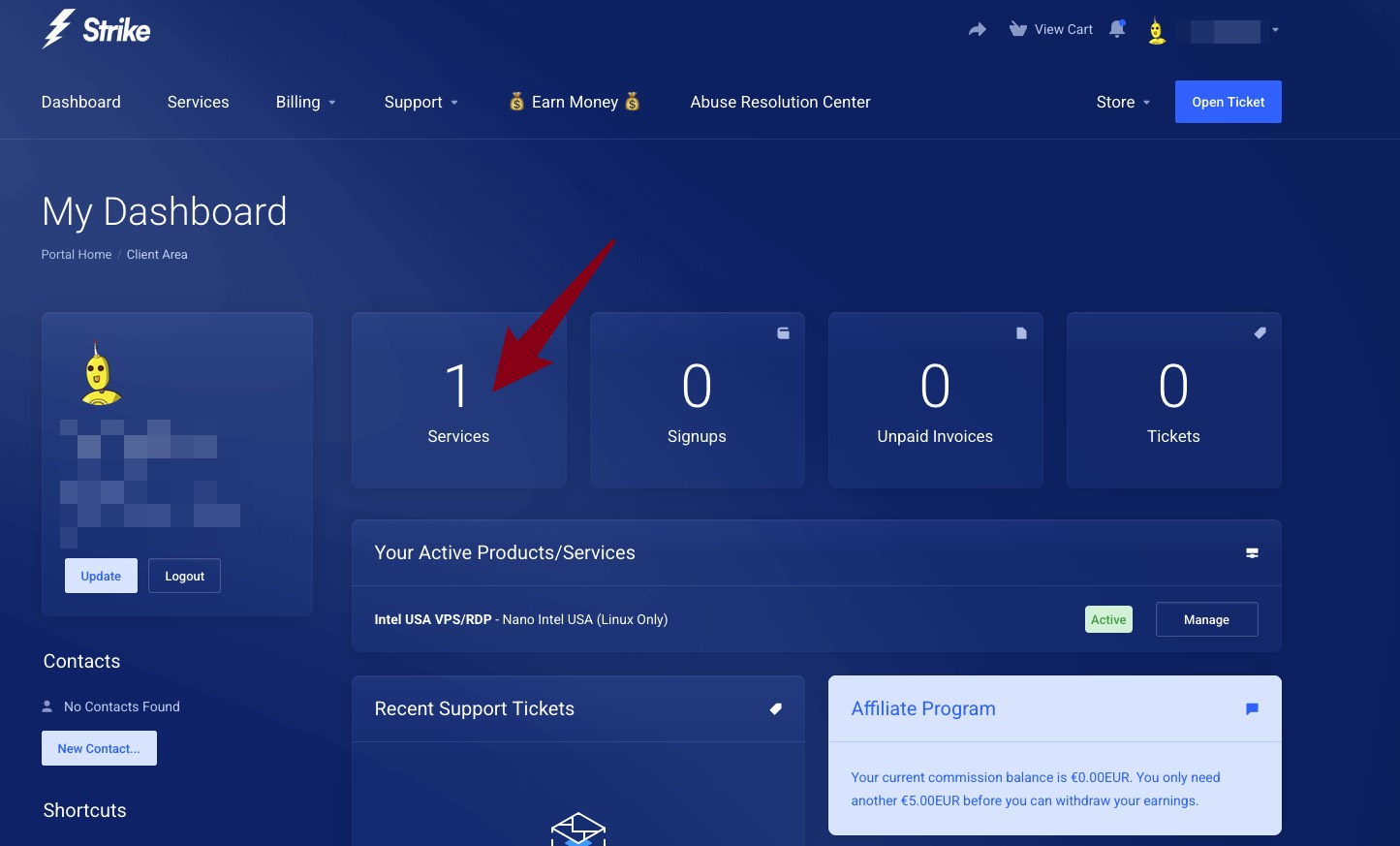
Step 1: Locate Your Service
Go to the "My Services" tab inside your Client Area dashboard. This section lists all of your active and pending services.
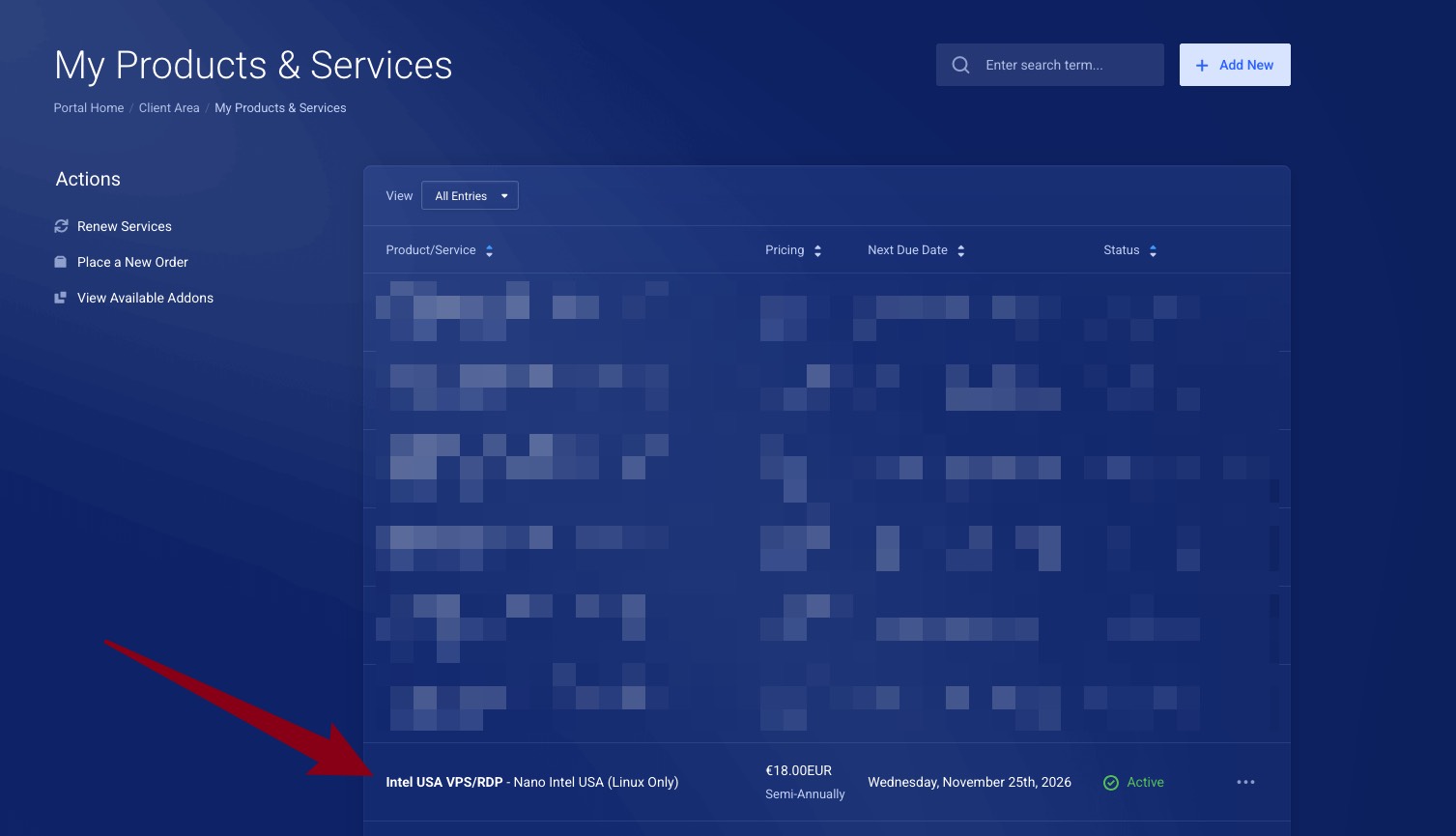
Step 2: Select Your Server
From the list, choose the specific VPS or RDP service that you want to set up and activate.
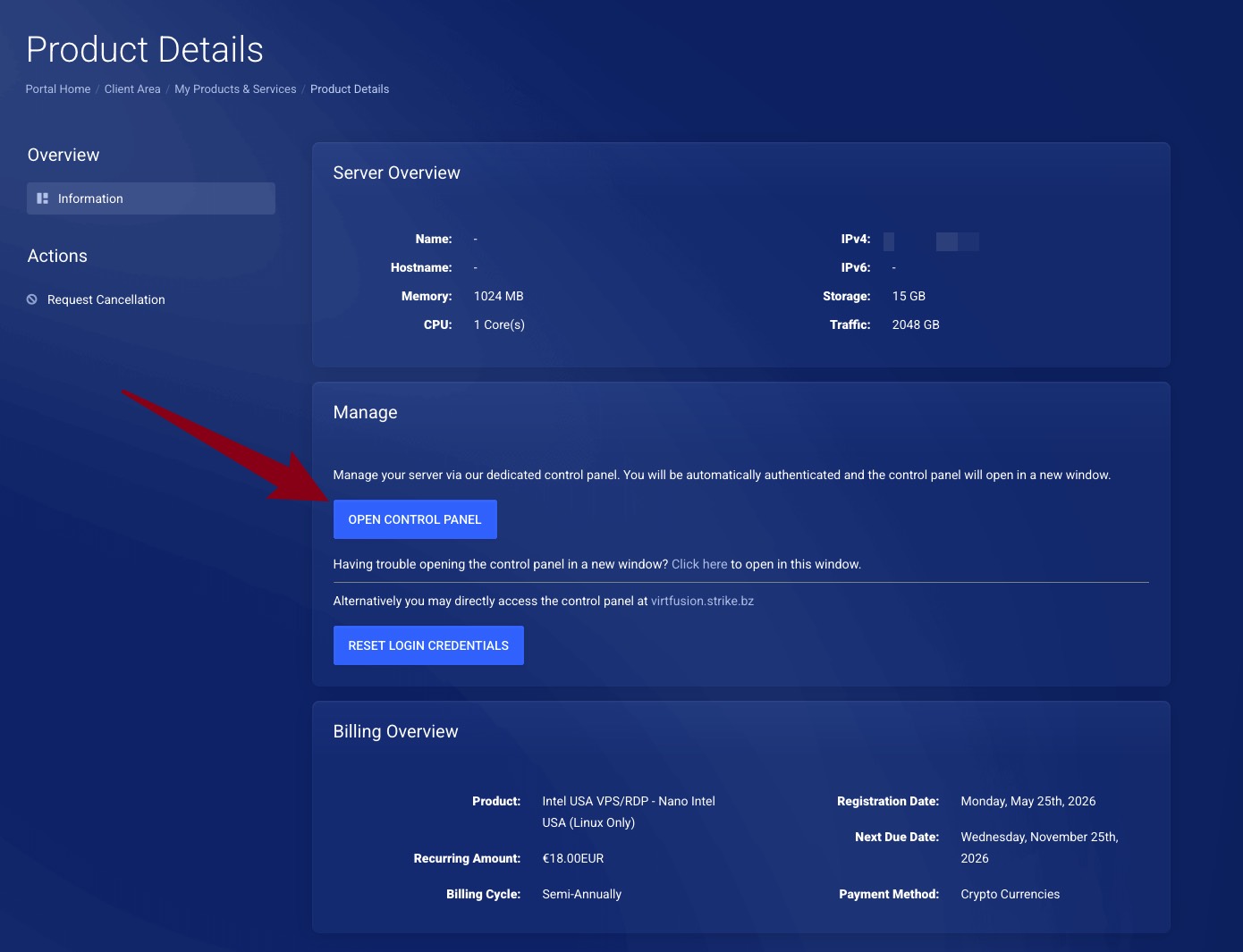
Step 3: Access the Control Panel
Click on the "Open Control Panel" button. This will securely redirect you to the VirtFusion management platform, where you can perform the necessary technical configurations.
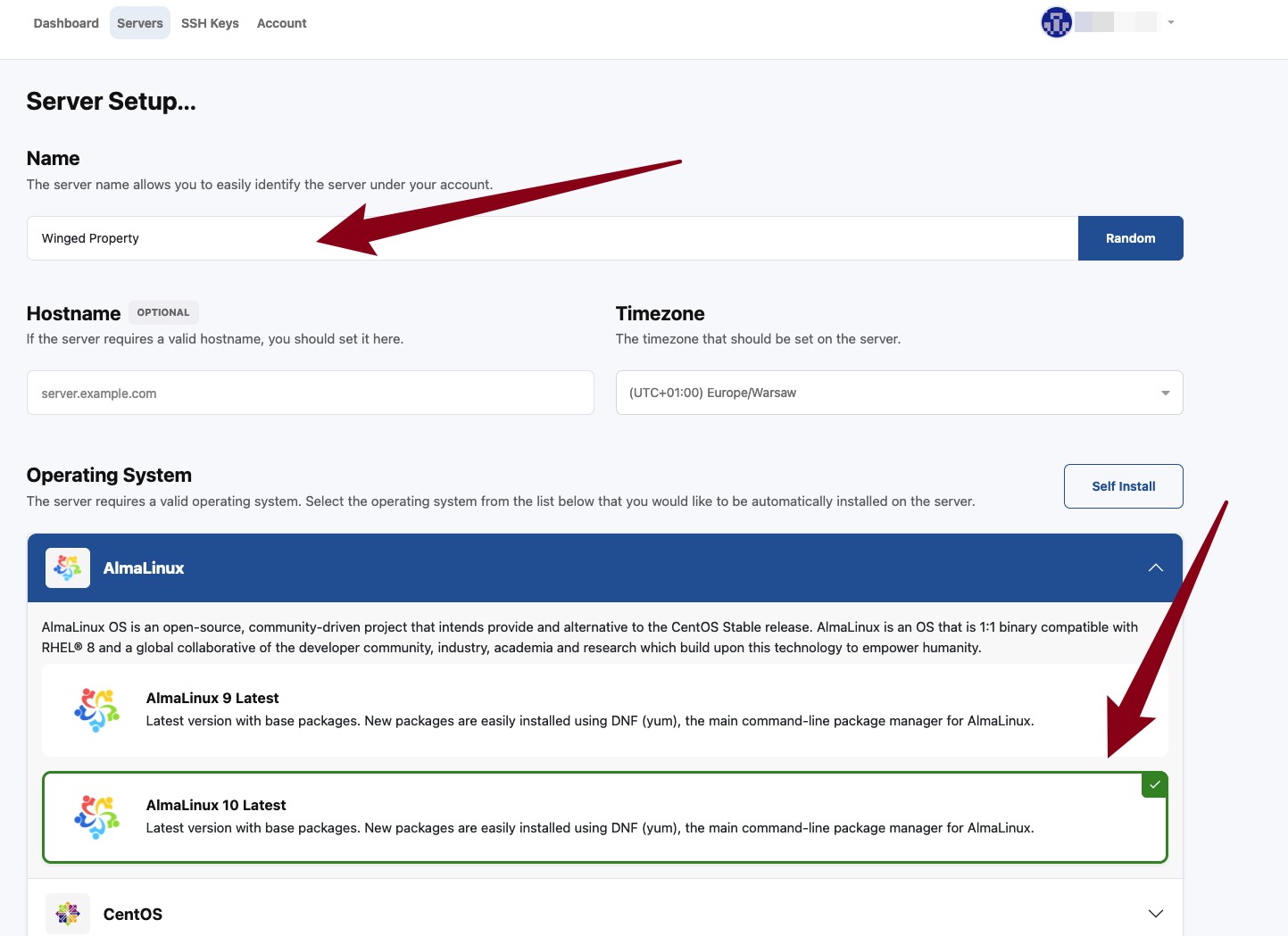
Step 4: Choose a Server Name and Operating System
Once inside the VirtFusion control panel, you can begin the setup process:
-
Display Name: First, give your server a custom display name to easily identify it.
-
Operating System: Choose your preferred Operating System (OS) from the dropdown menu. (For example, in our screenshots, we are installing AlmaLinux 10).
Step 5: Configure Server Resources and Security
Next, customize your environment based on your chosen OS:
-
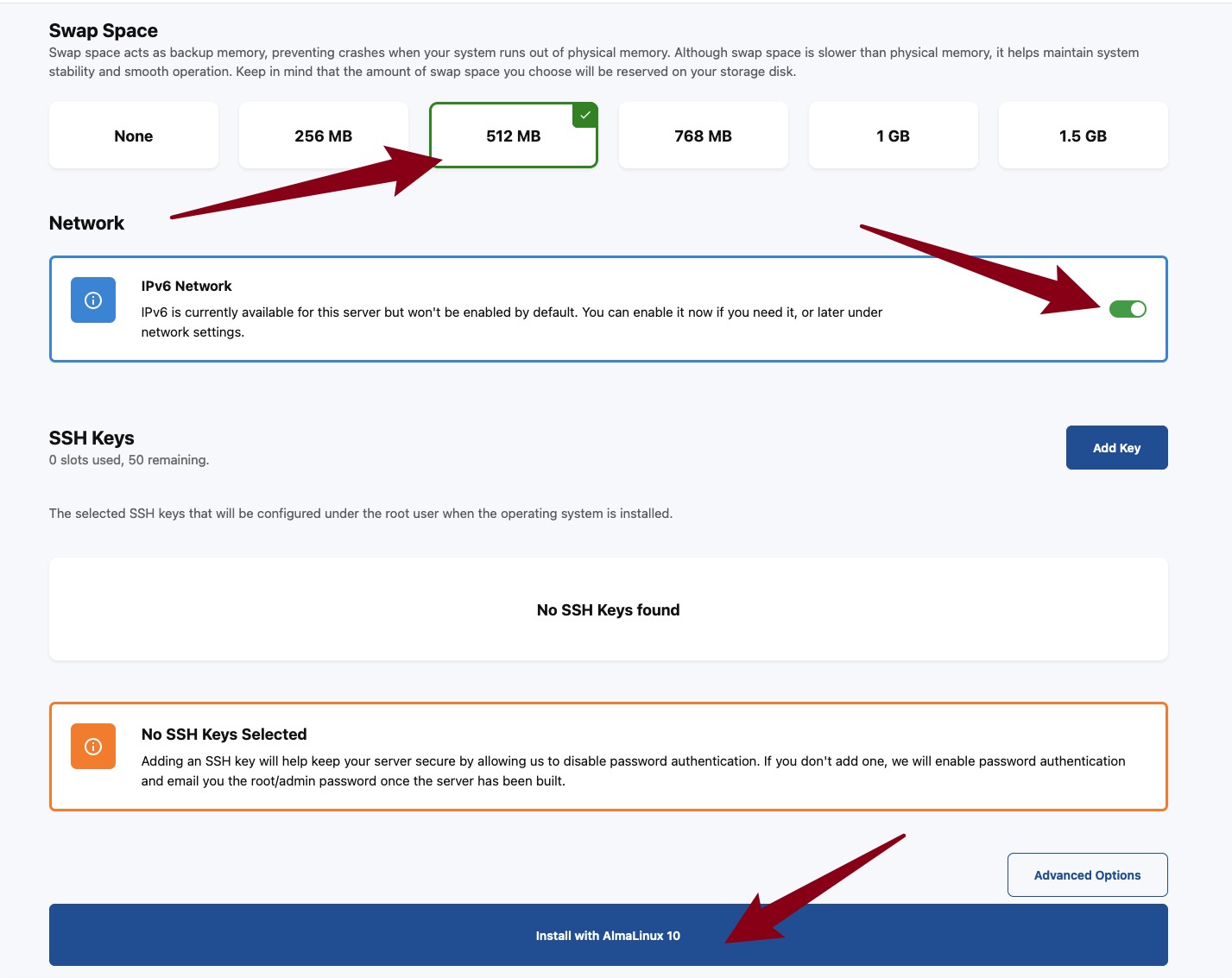
SWAP Memory: If you selected a Linux OS, you will see an option to configure SWAP memory. Adjust this according to your performance needs.
-
IPv6 Networking: Enable IPv6 by checking the box if you require or wish to use IPv6 addresses.
-
Authentication (SSH vs. Password):
-
For Linux: You can paste your public SSH key here for secure passwordless login. If you leave this field blank, our system will automatically generate a strong, random root password for you.
-
For Windows: You can leave this field blank, as the system will generate an Administrator password automatically.
-
Once you have reviewed your choices, click the "Install With" (or "Install") button.
Step 6: Wait for Installation
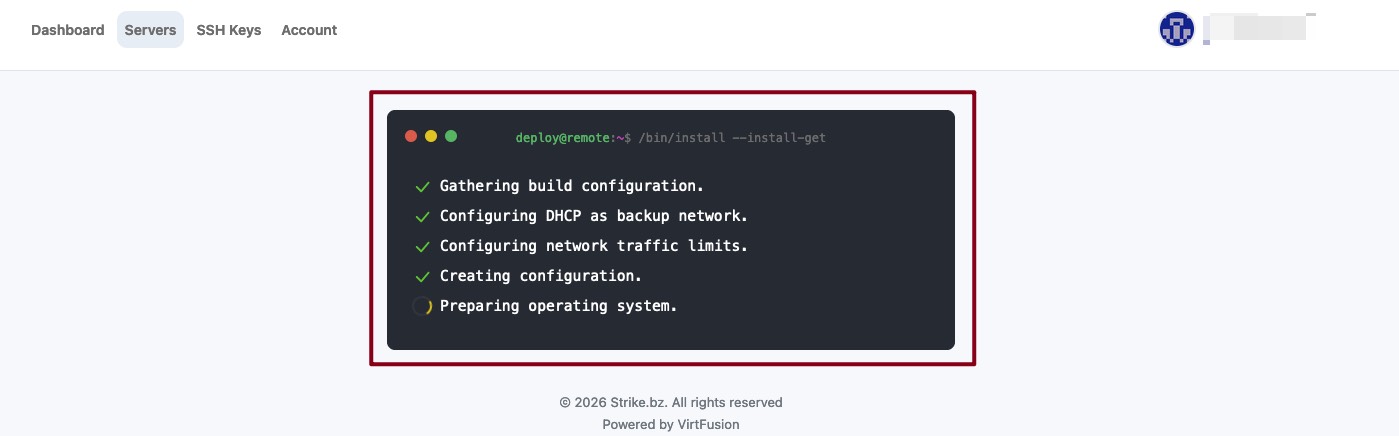
After clicking the button, the VirtFusion panel will automatically begin provisioning your virtual machine and installing the selected OS. This process typically takes a few minutes.
Step 7: Check Your Email for Login Credentials
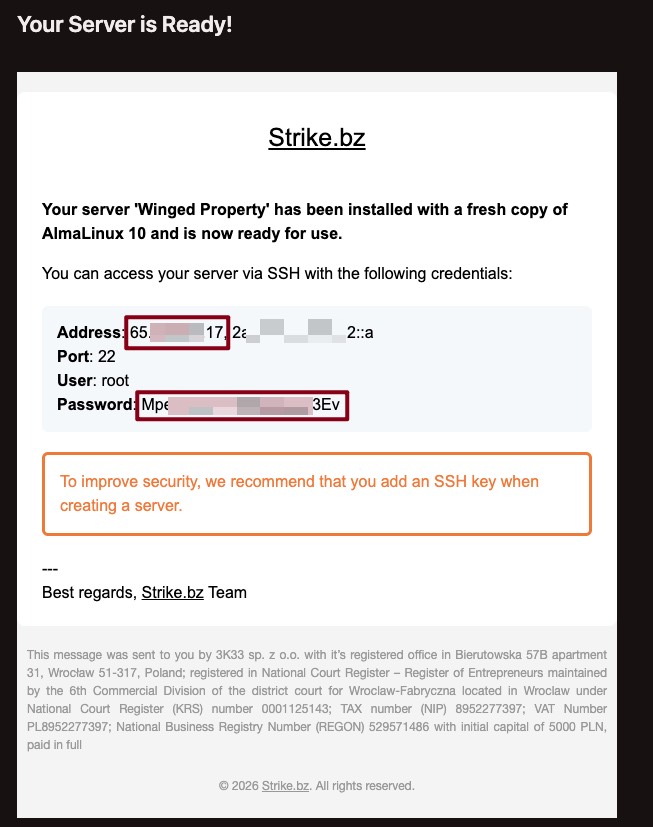
Once the installation is complete, the control panel will automatically send a confirmation email to your registered address. This email contains all the crucial details you need, including your IP Address, Username, and Password (if no SSH key was used).
Step 8: Connect to Your Server
Copy your login details from the email. If you are unsure how to establish a connection to your specific Operating System (e.g., using SSH for Linux or Remote Desktop Protocol for Windows), please follow our dedicated, easy-to-use Connecting to Your Server guides.