What You'll Need
- iOS device (iPhone or iPad) with the Windows App Mobile installed
- IP address, username, and password for your Windows Server (provided in your welcome email)
Steps
-
Install the Remote Desktop App
- Open the App Store on your iOS device.
- Search for “Windows App Mobile” and install the app.
-
Open the Remote Desktop App
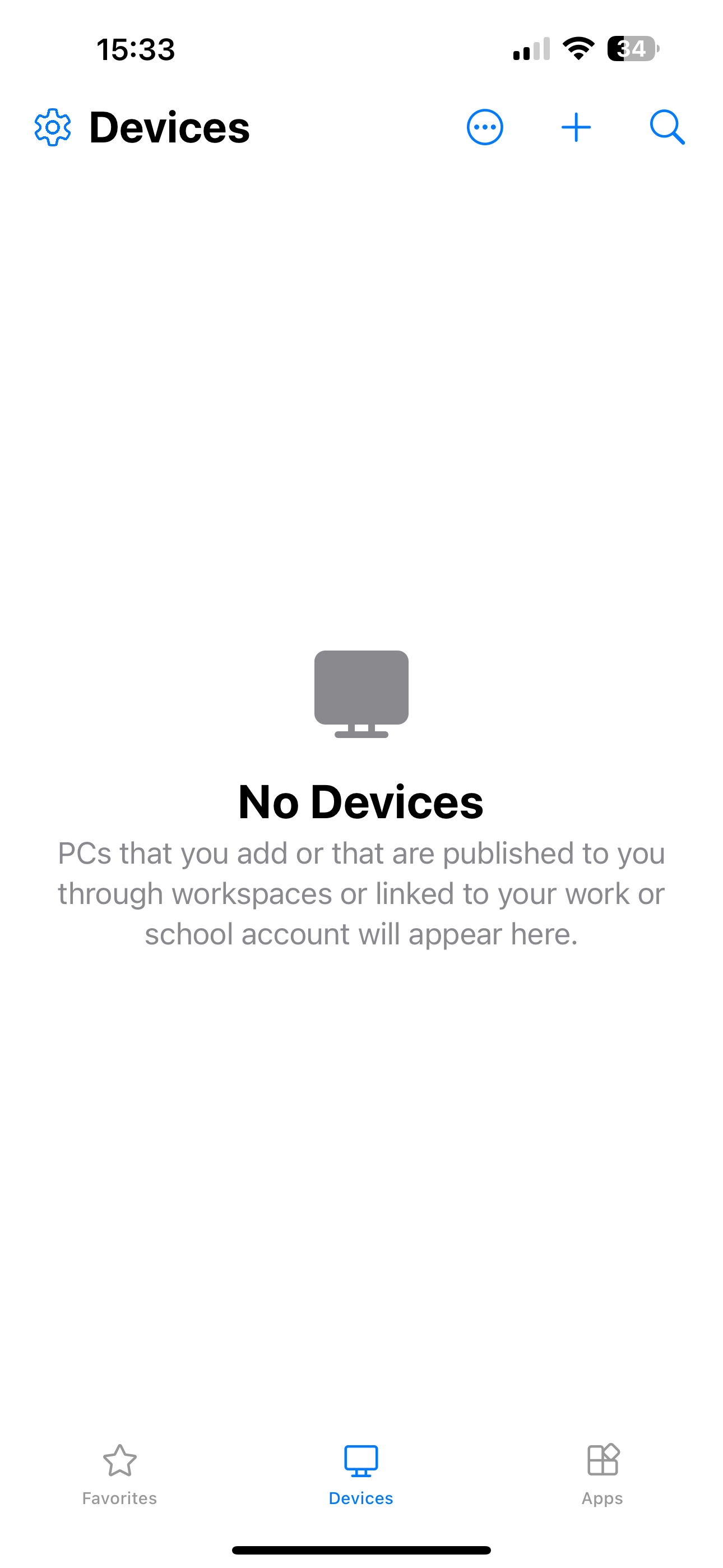
- Launch the Windows App Mobile on your iOS device.
-
Add a New Connection
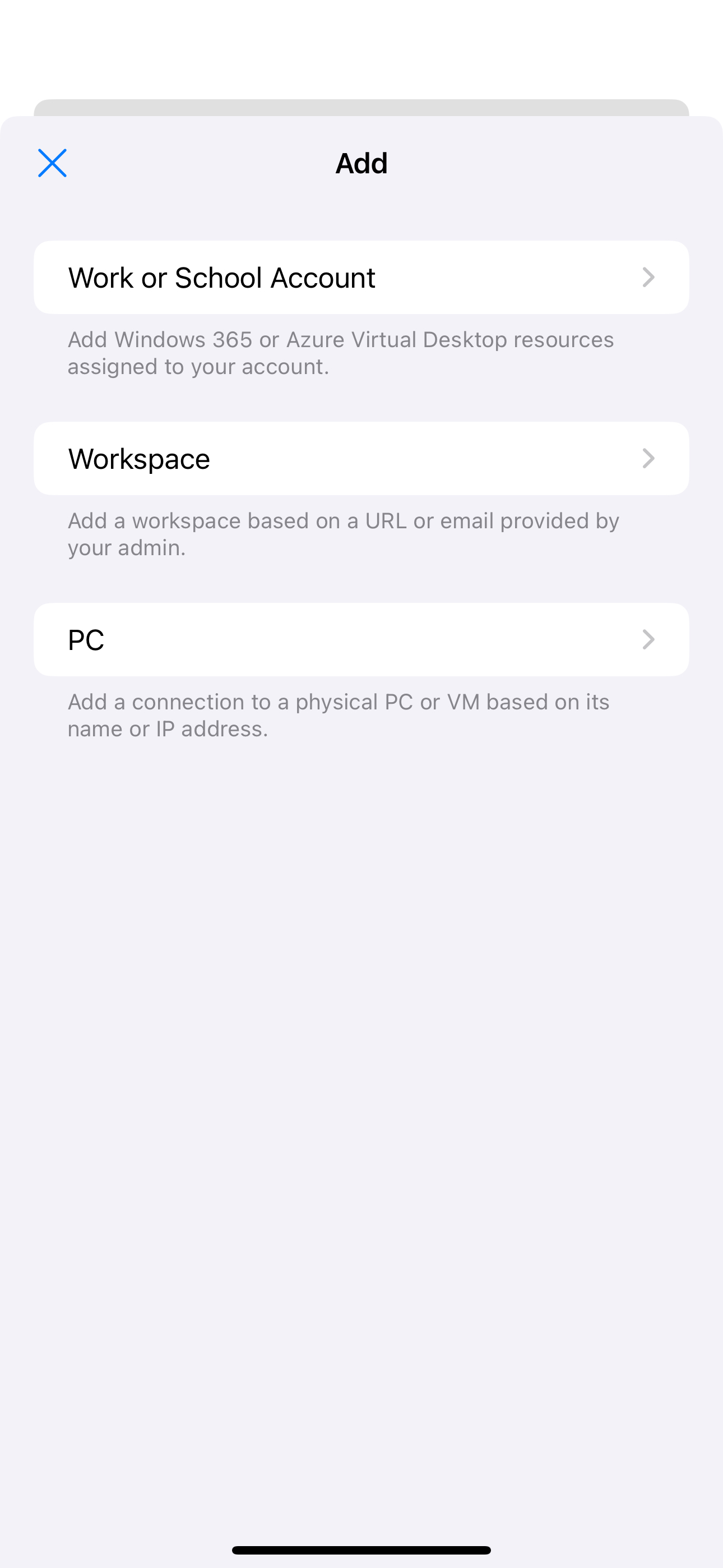
- Tap the + icon at the top right corner of the app.
- Select PC to start a new connection setup.
-
Enter the Server’s IP Address
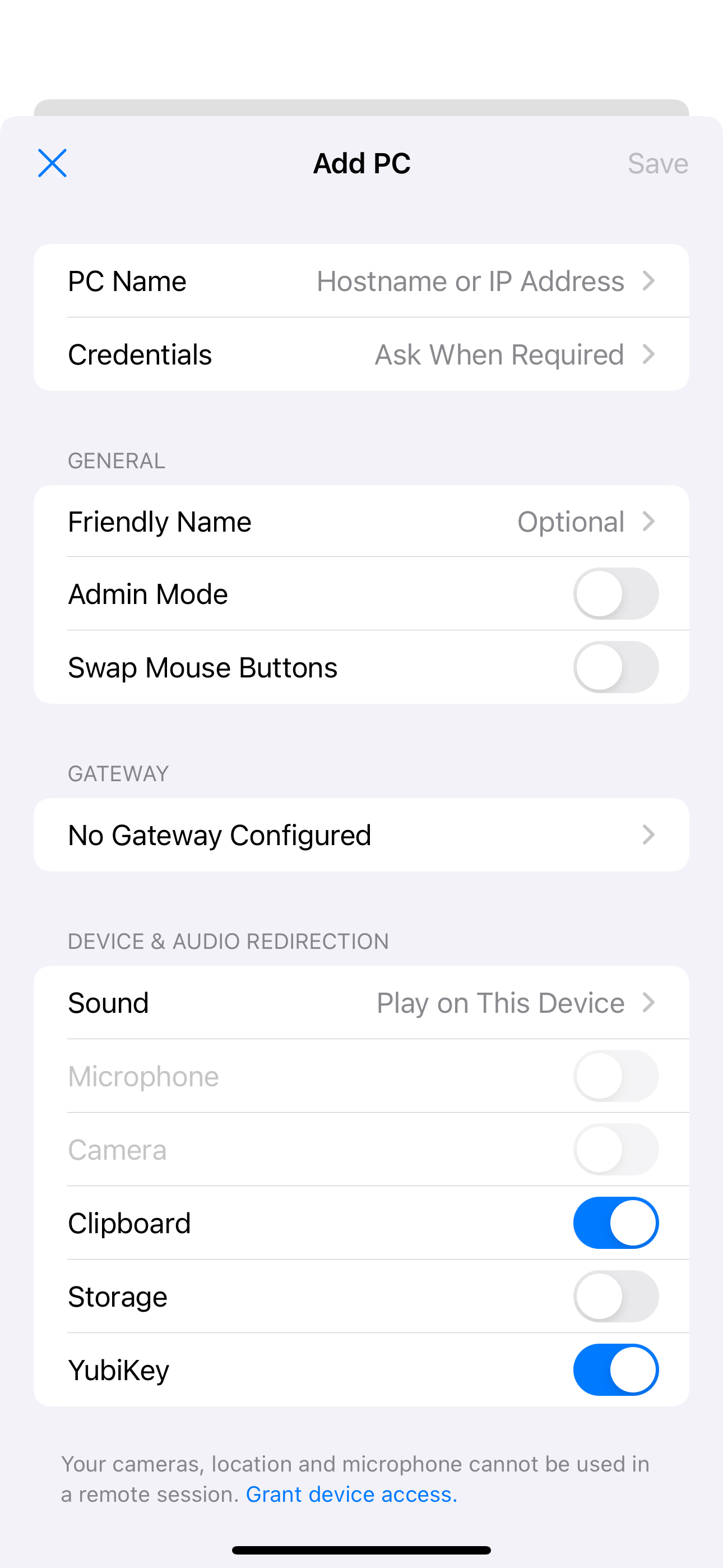
- In the PC Name field, enter the IP address of your Windows Server (found in your welcome email).
- Tap Credentials to set up login credentials.
-
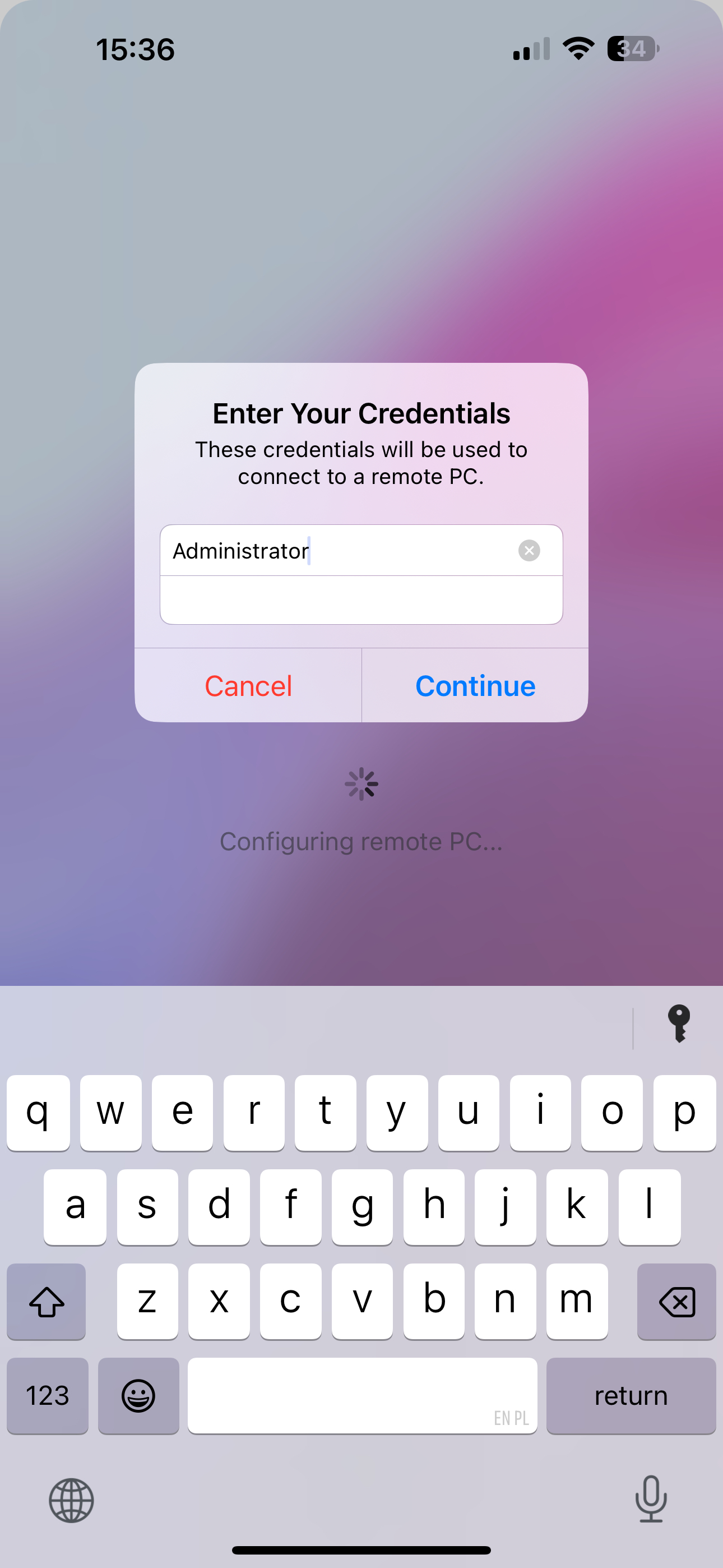
Add username and password
- Enter the server’s username (typically
Administrator) and the password provided in your welcome email. - Tap Connect.
- Enter the server’s username (typically
-
Connect to the Server
- Tap on the server’s name in your list to initiate the connection.
- If prompted with a certificate warning, tap Accept to proceed.
-
Begin Using Remote Desktop
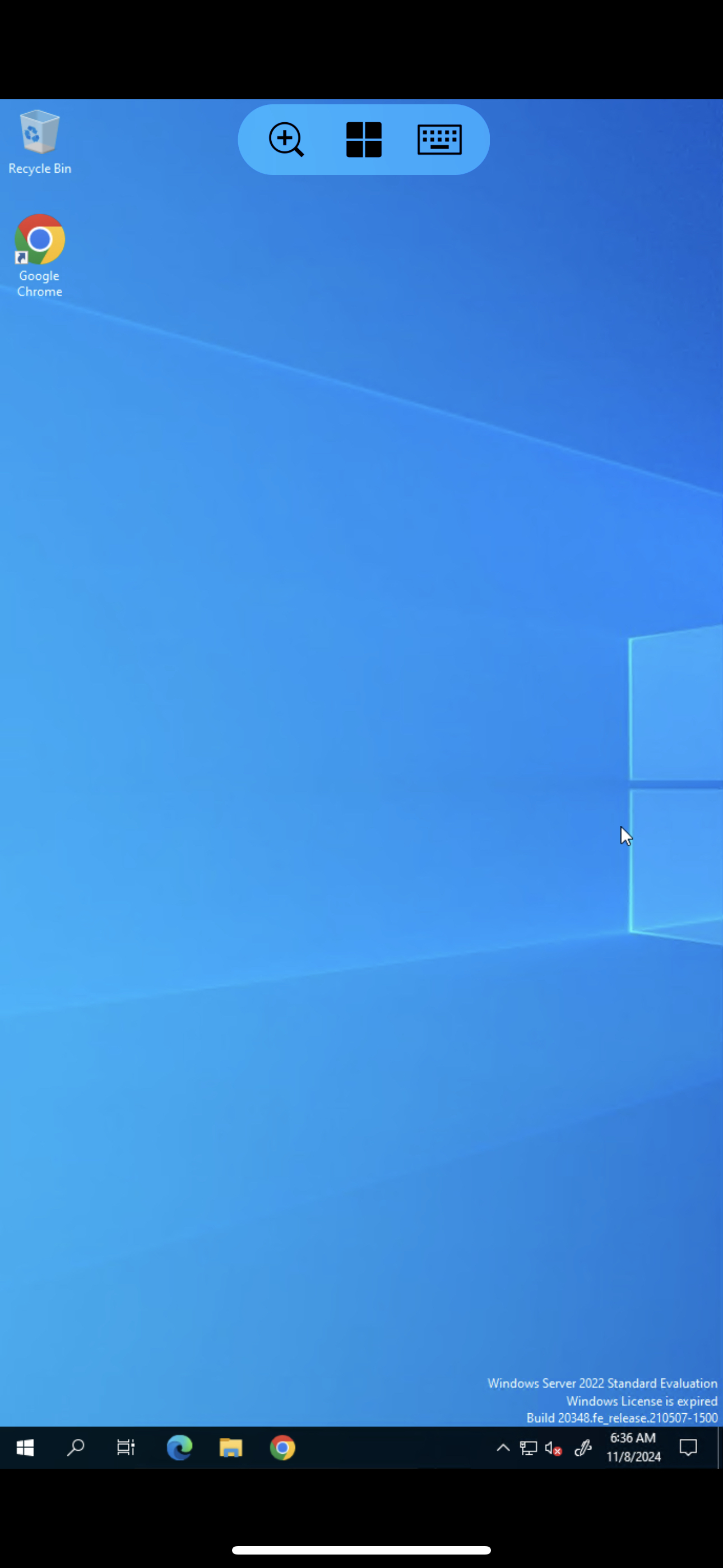
- You should now see your Windows Server’s desktop on your iOS device, allowing you to control it as if you were using it locally.